Pick on the User's Screen
Buttons are in different places on different phones. Instead of guessing, let the user show the macro on their own screen: a spot to tap, several spots in order, or a whole routine.
Picking uses the same markers as the Block Editor's touch tools and Simple Mode. For the best result, open the app the macro works on before starting the macro, so the user picks on the right screen.
tap picker
The user taps a spot, then drags the marker to fine-tune it. The coordinates show at the bottom. Done saves it.
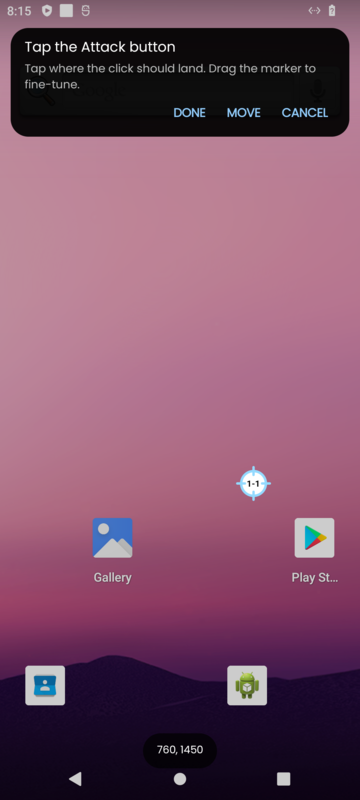
The answer is a Point. Use it with click at a point:
With default ticked, the macro works before the user picks: it uses your x and y, scaled to their screen like your other coordinates. A spot the user picked is used as it is, because it is already on their screen.
tap list picker
The user taps several spots in order, up to the number you set. Each marker shows its number and can be dragged; Undo removes the last one.
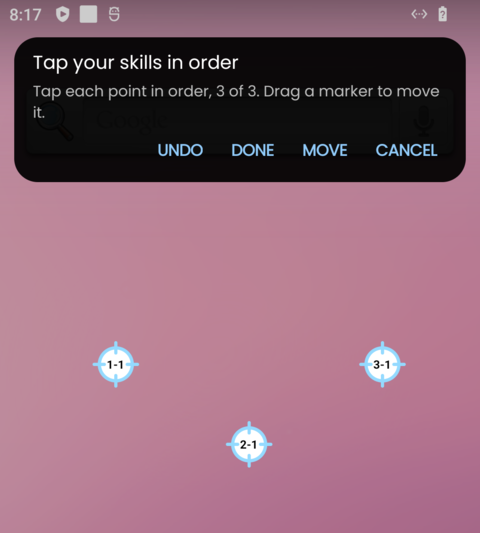
The answer is a list of Points, in the order the user tapped them:
touch recorder
The user plays a routine once: every tap, hold and swipe is recorded, and passed on to the app so they can play normally. Stop ends the recording; Undo removes the last step.
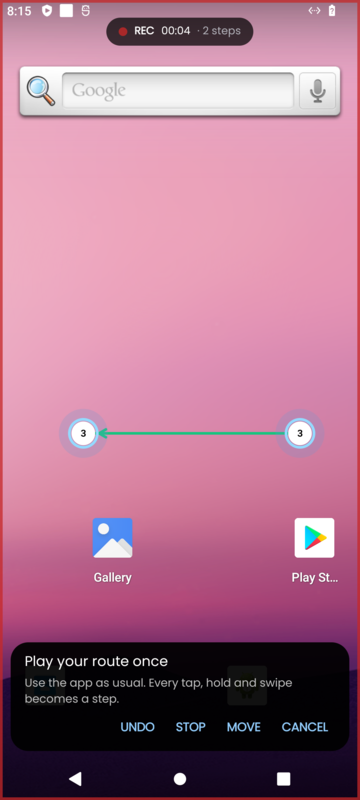
The answer is a record name. Play it with play touch record, with the answer in place of the record:
It plays at the pace the user played. speed makes it faster or slower. Leave delay between action at 0 to keep the user's own pauses; any other value replaces them with that wait.
With a default record, the macro plays one of your own touch records until the user records theirs.
When the screen changes
A pick belongs to the screen it was made on. If the user's screen size changes, for example on another phone, the dialog asks for the pick again. The same happens for recordings.
After picking, the user can press Show to see where the pick is, Redo to pick again, or Use default to go back to yours.