How To Build Dialog Prompt
Initialize the dialog
To use a Dialog block, start by using this block, which prepares the dialog for setup.
Adding Components to the dialog
Once dialog has been initialize, you can insert some dialog components block into the dialog. Currently dialog only accept these components CheckBox, TextView, Radio Button, Radio Group, Column, Row and Text Input
Some dialog components also support default values through the block mutator:
Text Inputcan define default textCheckBoxcan define default checked stateRadio Groupcan define a default option id
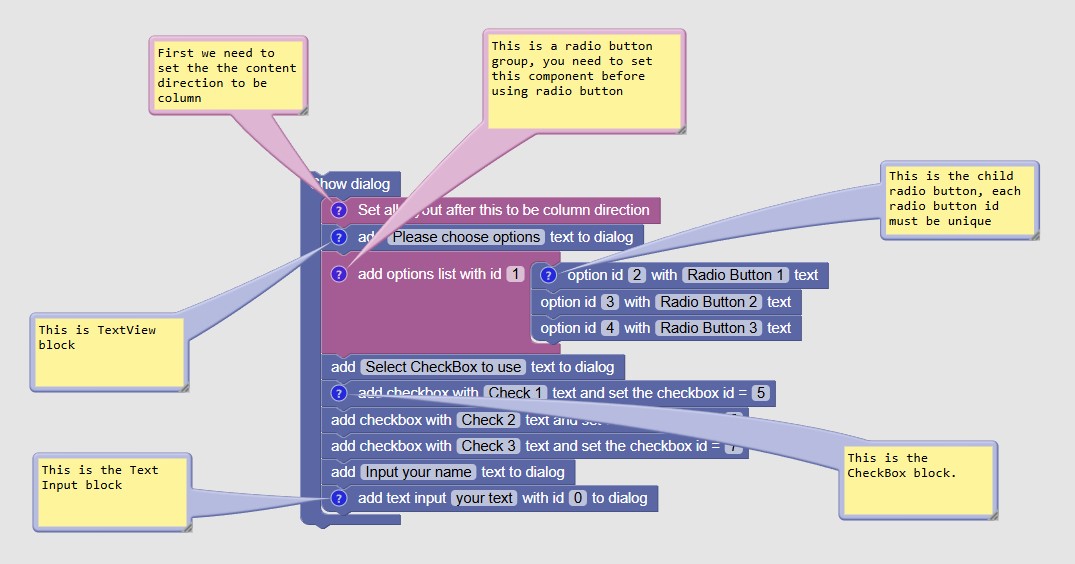
Equivalent Block Builder
Extract the user input from dialog
To grab user input, you can use this block to grab the value based on the dialog component id
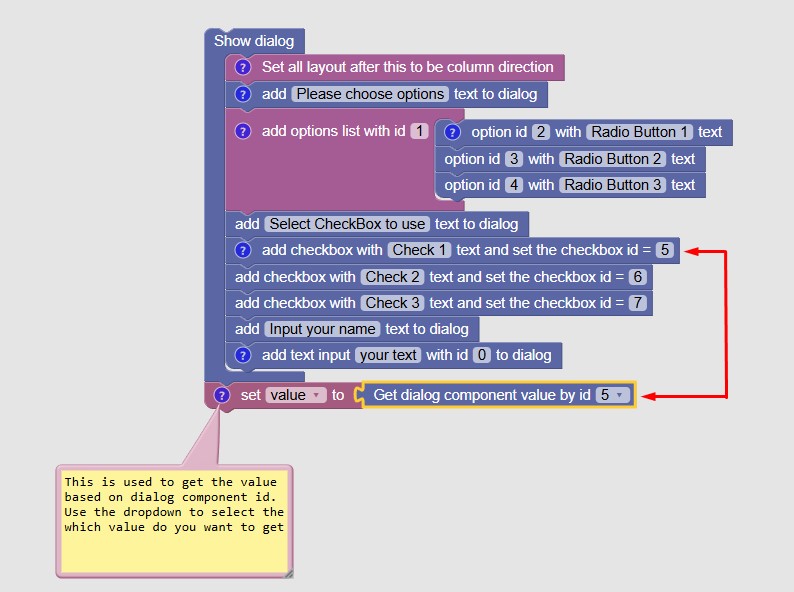
In this example we extract the value of component id 5 which is the CheckBox and assign it to variable value.
The value will receive boolean data types
Auto confirm with timeout
The dialog show block also supports an optional timeout through its mutator. When the timeout is set, the dialog will automatically confirm after the specified number of milliseconds and continue macro execution with the current or default values.